
The MSI X299 Gaming Pro Carbon AC Motherboard Review
MSI X299 Gaming Pro Carbon AC Software
Over the last couple of generations, MSI’s main hub of options has switched from a combination of Control Center and MSI Suite to Command Center with a much cleaner interface and array of options. As this is a gaming based motherboard, there’s also a set of gaming related software bundled with the system with the usual stuff. One perennial favorite is Live Update, one of the best motherboard driver/software tools available from any of the motherboard manufacturers. Aside from not having the ability to disable certain updates (such as Norton) from ever appearing, Live Update does its job and can be set to activate at regular intervals.

One issue with Live Update though is the notification to update: it seems to interfere with the majority of full screen applications, including games, when it thinks you haven’t updated in a while. This behavior is enabled by default, which can be frustrating.

MSI bundles the motherboard with a custom version of CPU-Z, a tool used to verify the processor being used, the frequency, the motherboard and the memory. CPU-Z is a free tool anyway, but MSI has paid for a license to supply a skinned version with their motherboards (such that extreme overclockers and modders that use CPU-Z to prove certain benchmark scores can promote MSI when using MSI products).
One issue with Live Update though is the notification to update: it seems to interfere with the majority of full screen applications, including games, when it thinks you haven’t updated in a while. This behavior is enabled by default, which can be frustrating.
MSI bundles the motherboard with a custom version of CPU-Z, a tool used to verify the processor being used, the frequency, the motherboard and the memory. CPU-Z is a free tool anyway, but MSI has paid for a license to supply a skinned version with their motherboards (such that extreme overclockers and modders that use CPU-Z to prove certain benchmark scores can promote MSI when using MSI products).

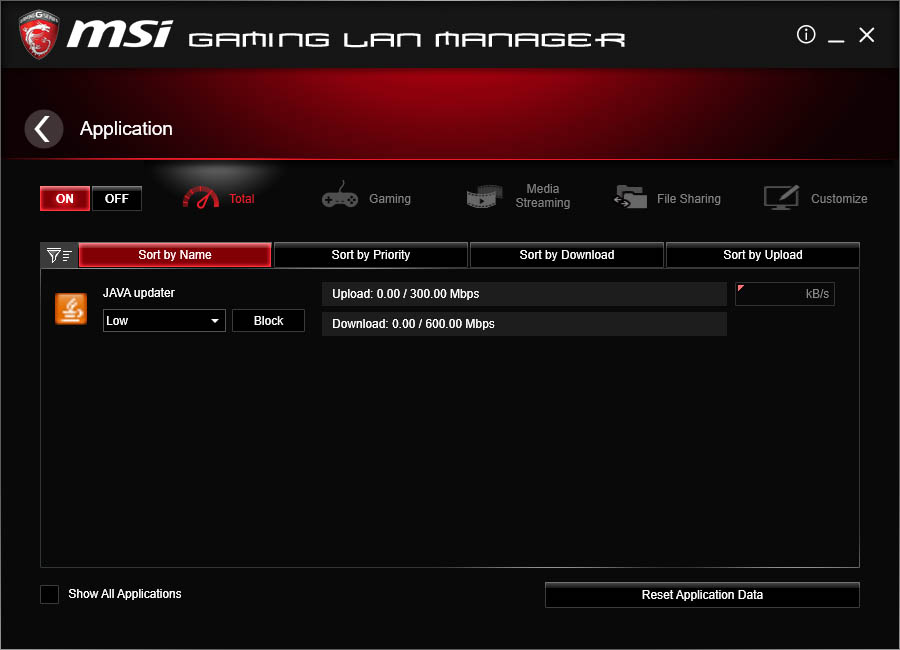
As part of the gaming toolkit, MSI bundles the motherboard with cFos, software that enables users to prioritize certain network traffic such as VOIP or game data over heavier streams such as downloads or streaming. It can be a good tool if you need to ensure a good upload quality of service for a particular app, but cannot do much to other people over the network. We’ve seen cFos on lots of motherboards before, and MSI supplies the package with their own custom skin to align with the MSI Gaming brand.
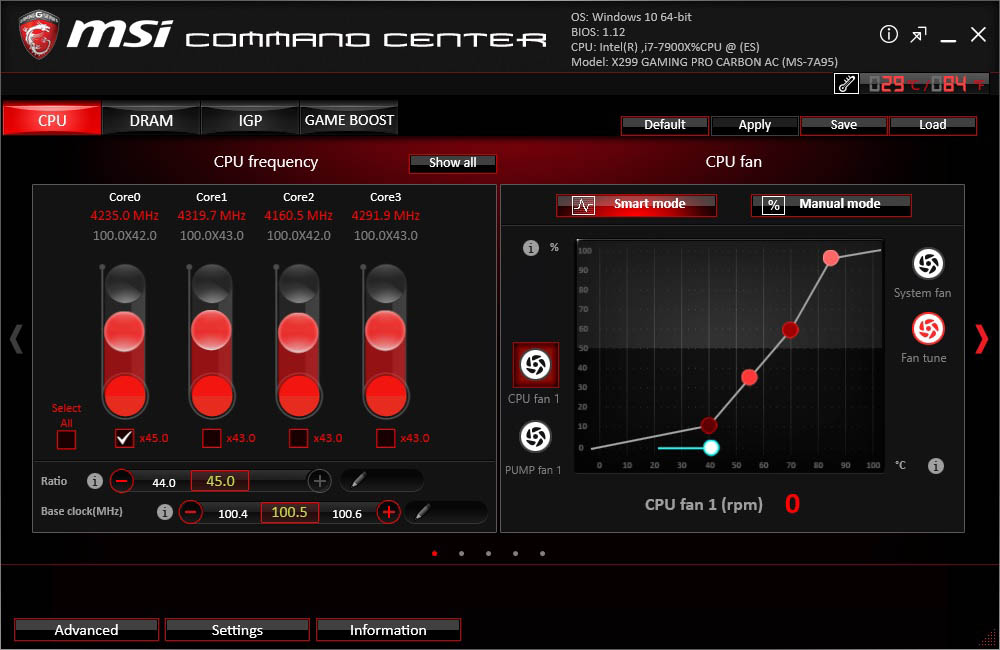
The main element of the software package is Command Center – the place to go for on-the-fly overclocking or fan adjustment tools. Users can enable per-core multiplier ratios on the CPU or adjust a multipoint gradient between fan power (voltage applied which is non-linear rather than RPM) and temperature.
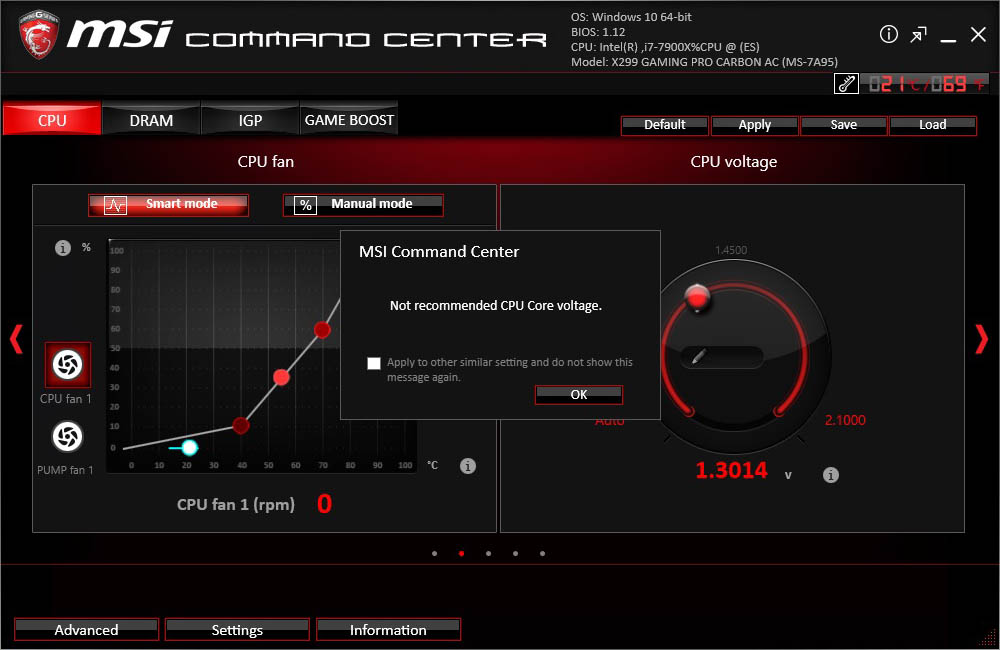
Thankfully MSI has changed their CPU voltage options: users will now encounter a message if they try to select a voltage in the ‘extreme’ range (which MSI sets for 1.30 V and above on Skylake-X).

The Game Boost tab is one of three ways that you can access and enable the Game Boost automatic overclocking feature, the others being the Game Boost Knob and the top-left corner of the BIOS. There are 8 overclock presets to choose, and they obviously differ depending on what processor you have installed. Once you've selected your desired overclock level, the app will ask to restart the system, and the overclock will be applied at the next boot.
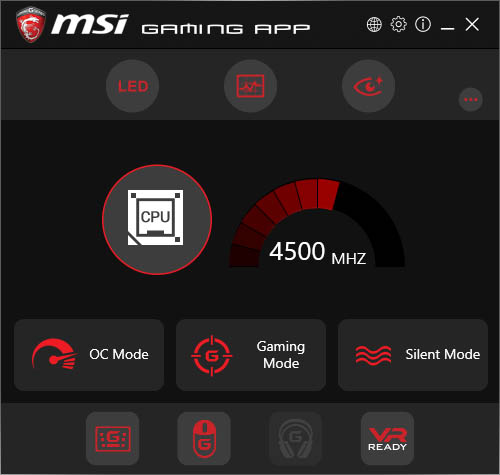
The Gaming App is a short way of implementing a basic overclock or putting the system into ‘Gaming’ or ‘Silent’ mode. I guess MSI is hoping users see this as a ‘sport’ button found on many performance based rear-wheel drive vehicles. This software also includes the ability to implement an onscreen display showing CPU, DRAM and GPU info for a set of whitelisted games:
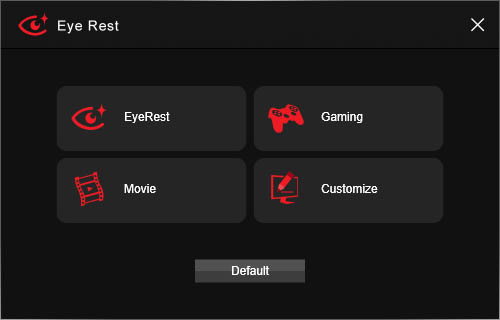
Part of the Gaming App also includes an ‘eye rest’ mode, which similar to certain options you get with monitors invokes a color shift on the display (but at the OS level) in order to reduce the level of blue light, or try and restrict the color spectrum to something more suitable for gaming or movies. Needless to say in most circumstances it’ll do bad things to color accuracy of a monitor, but it still remains a ‘feature’.
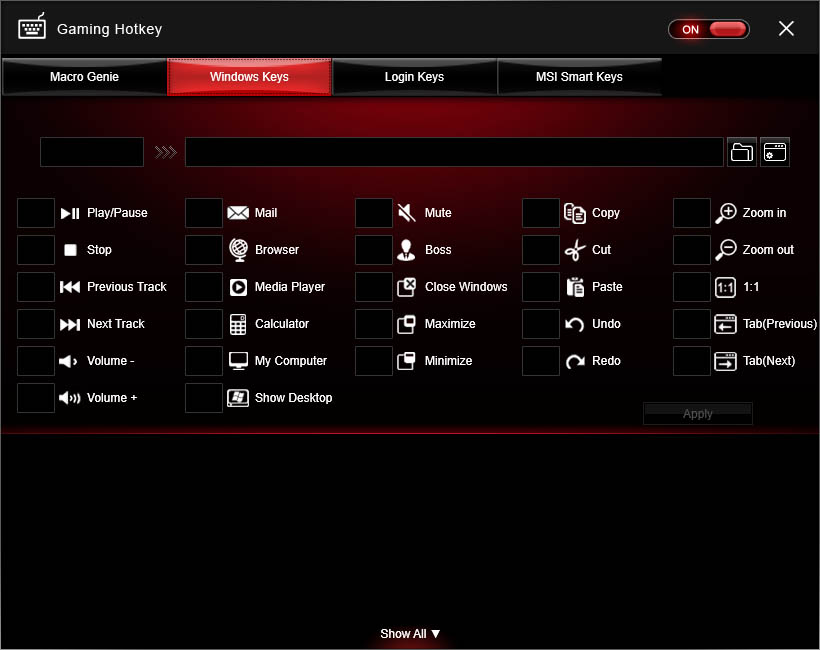
The Gaming App also offers the ‘Gaming Hotkey’ page, which as the image suggests above allows users to configure various motherboard keys to certain media or other functions that may not be present on the keyboard.
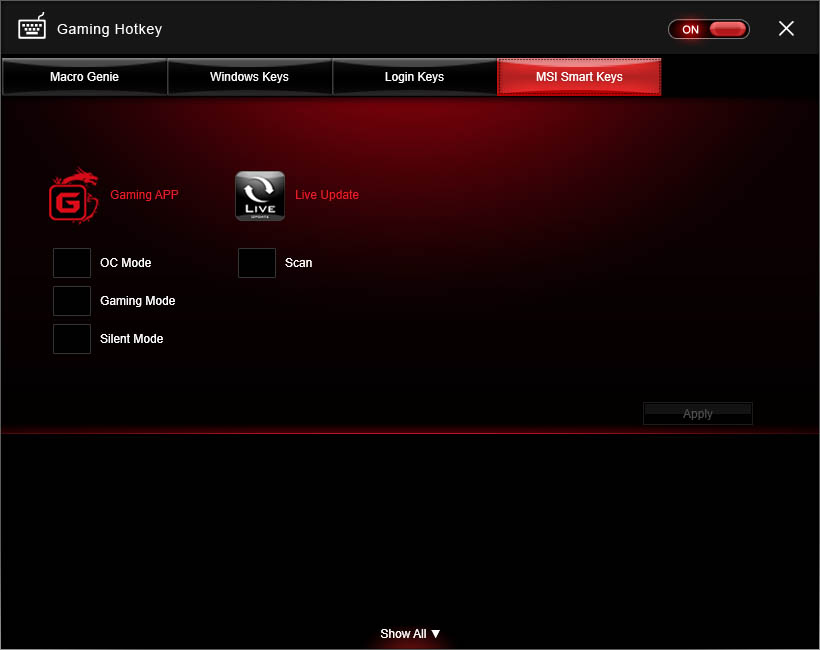
This gaming hotkey feature also includes the ability to set hotkeys for some of MSI’s software, such as base clock increasing via Command Center or the OC/Gaming/Silent modes from the Gaming App.
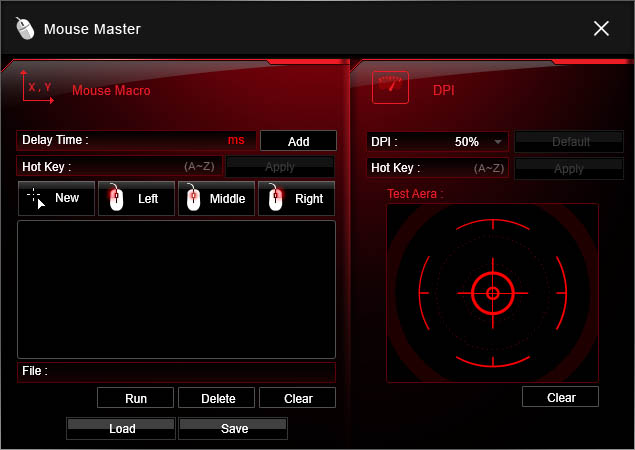
On the coattails of some other motherboard manufacturers, MSI also has Mouse Master: an application that allows for macros to be programmed with mouse clicks. This also includes a DPI adjustment similar to ‘sniper’ modes in other software.

MSI’s RAMDisk software has been part of the package for a couple of generations now, and compared to older versions this one allows the user to select the size of the RAMDisk before creating one (previously you had to create a 256MB RAMDisk then adjust the size afterwards).
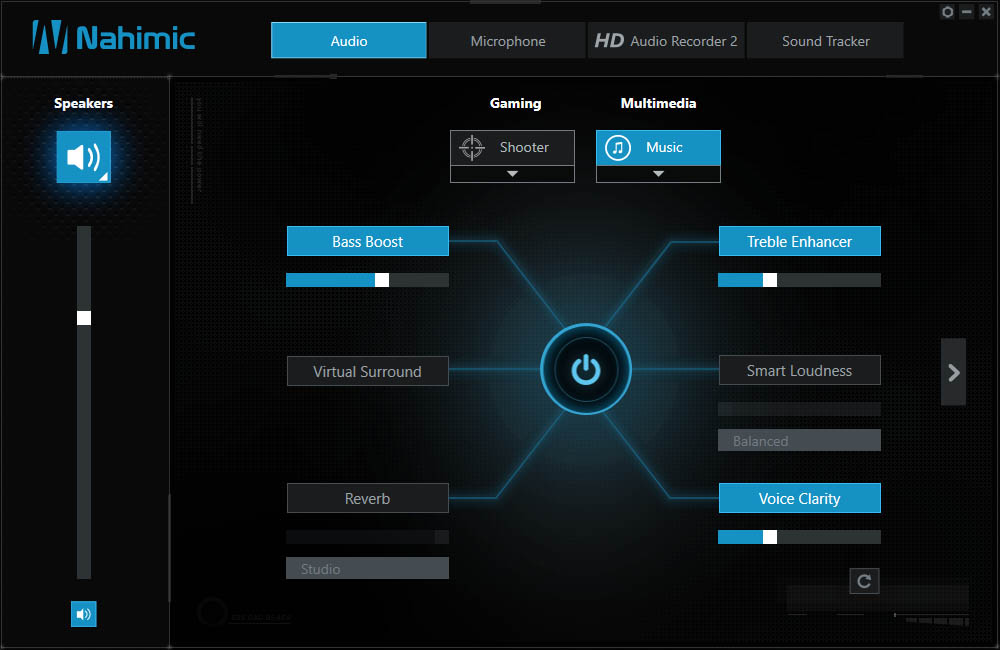
MSI also bundles in the Nahimic audio software. I’ve been disgruntled with the Nahimic software in the past, as most of what it does is little more than EQ adjustment already provided by Realtek software. However MSI is sticking to their guns (or licensing agreement) and promising new Nahimic based features as time goes on. This includes an Audio Launchpad, allowing streams to sync up six-prerecorded sounds into an on screen display to riff during streaming (much like a shock-jock on the radio might play a cringe-inducing sound).

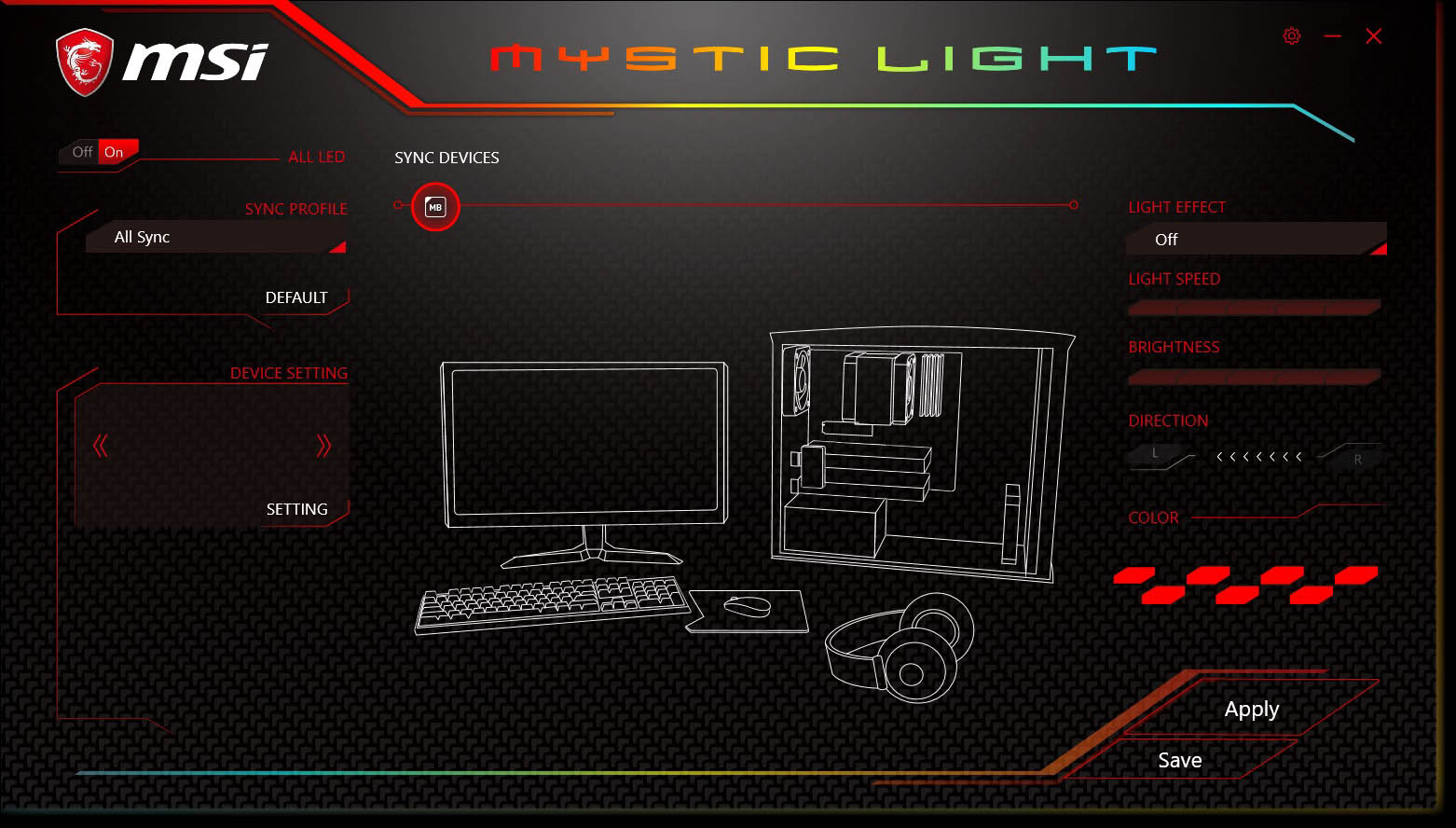
The new Mystic Light utility replaces the previous LED utility, which was integrated into to the Gaming App. This standalone piece of software is in charge of controlling the Mystic Light RGB LED lighting feature, and it allows you use select between 17 different effects and ostensibly choose any one of 16.8 million colors.


Originally published at https://www.anandtech.com/show/11553/msi-x299-gaming-pro-carbon-ac-motherboard-review (Wayback Machine).