
IBM ThinkPad X31 1.4GHz Pentium M: A Traveler's Best Friend
- Posted in
- Laptops
Construction - Build, Appearance, Size
The X31 is an ultraportable notebook that manages to keep the same style possessed by the entire IBM line; a style which has been present since at least the 486 notebook days. The system is classic IBM black with a small, three colored IBM logo on the top. The notebook is opened via two sliding clips on the left and right side of the system's front. Slide the clips in opposite direction and, voila, a computer appears.
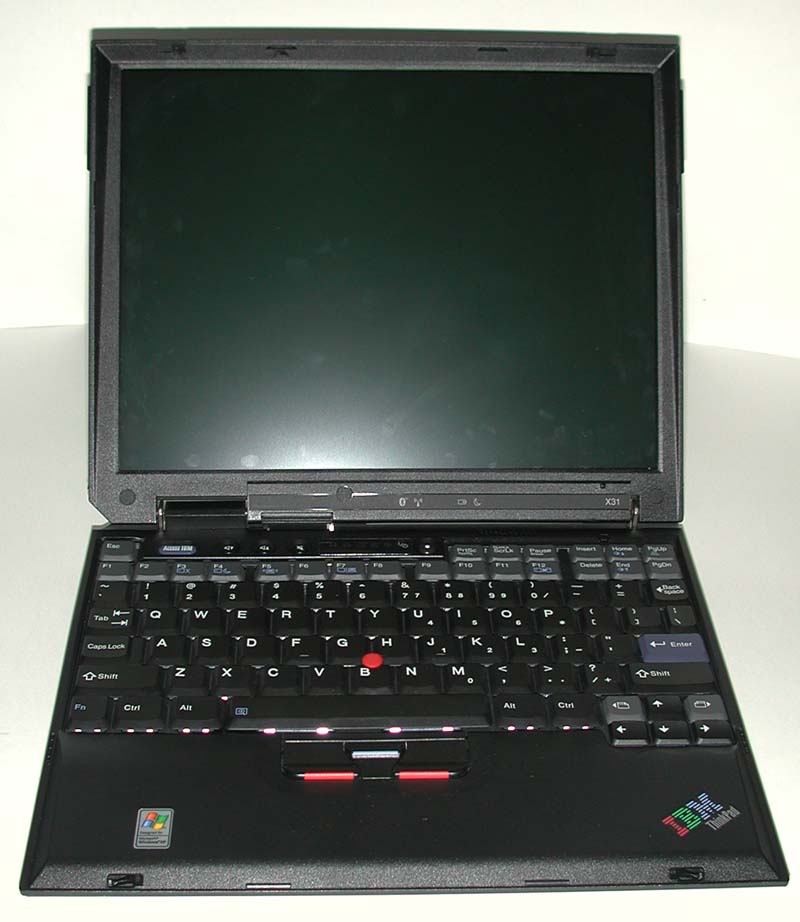
Opening up the IBM X31 reveals a 12.1" XGA (1024x768) screen, the only type available on the entire X31 line. Although we have become somewhat spoiled by the desktop replacement and full featured thin and light notebooks we have reviewed, becoming more and more used to a large 14.1" or greater TFT LCD panels on notebook computers, the 12.1" screen on the X31 was a perfect fit. First off it does not seem physically possible to fit a screen larger on the unit: it only measures 10.7" by 8.8" after all. Secondly, the XGA resolution that the screen supports proved to be ideal. Whereas we have complained in the past about 14.1" and larger screen supporting only XGA resolutions, 1024x768 looks just right on a 12.1" screen.
Another aspect of the X31 that IBM got just right (for the most part) on the X31 is the keyboard. Moving to an ultraportable machine often means lots of sacrifices have to be made. One area that the typical ultraportable system is severely lacking in is keyboard functionality. Ultraportable keyboards are often less than full sized, have a limited number of keys, and have very little tactile feedback. In contrast to this, the keyboard on the IBM X31 came about as close to a desktop keyboard that we have seen. Although physically smaller than the keyboard on the IBM T40 system, the X31's keyboard feels remarkably like the keyboard we raved about on the T40. The left side of the X31's keyboard is where the space was cut from in order to make the keyboard fit in the ultraportable system ye the keys still remained comfortable and quite usable. Tactile feedback was great thanks to plenty of key travel. The keyboard even features dedicated arrow keys: something rarely seen on ultraportable systems.
Again missing from the keyboard is a Windows key. IBM tells us that the absence of Windows key is a result of internal ergonomic and usability studies which determined that putting a Windows key on a keyboard alters the normal typing pattern and makes the unit less ambidextrous. Don't tell that to desktop keyboard manufacturers.

The X31 also incorporates the keyboard light we first saw on the T40. The keyboard is illuminated in dark situations via a small white LED that lies on the top left of the LCD panel. This picture from our T40 review should give you an idea of the LED's function.


Mouse input on the X31 is provided by IBM's TrackPoint device. Love it or hate it, there was really no other way for IBM to get mouse input on a unit this small with such a large keyboard. Personally we are fans of the TrackPoint, especially considering that the unit now ships with three different types of TrackPoint caps: the "soft dome," "soft rim," and "classic dome."
The mouse buttons are located below the space bar and, like the keyboard, have great tactile feedback. In addition to the standard right and left mouse buttons, the X31 also has a scroll button that when pressed allows the TrackPoint to act as a scrolling device.
The top of the keyboard is home to a set of five function buttons, the same set present on the T40 series notebooks. The far right button, the one with a white dot in it, is the power button. To the left we have a mute button, a volume up and a volume down button. Finally there is an "Access IBM button" which launches a "Access IBM" application when pressed. As the software section of this review will tell you, the Access IBM application provides one touch access to computer settings and support options.
Between the power button and the mute button are four status LEDs. These LEDs indicate: hard drive activity, number lock status, caps lock status, and power state. Also in this block of LEDs is a small hole beneath which the internal microphone lies. This should prove to be a good location for the microphone, out of the way of hands and far enough from the keyboard to prevent unwanted noise.

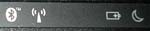
Another set of status LEDs are present on the bottom of the LCD panel. Our IBM X31 had four LEDs in this location: one indicating Bluetooth receiver status (blue while enabled), one for wireless receiver status (green while enabled), one for battery state (orange while low, green while high), and one for sleep state (green while the system is in sleep). These LEDs are accompanied by a similar set of LEDs on the back of the LCD panel which show the same information with the exception of the wireless status.
 |
 |
Originally published at https://www.anandtech.com/show/1092 (Wayback Machine).