
The GIGABYTE Server MW31-SP0 Motherboard Review: A Quick Look at C236
GIGABYTE Server MW31-SP0 BIOS
When examining server focused motherboards over the past few years, my expectations on what we find in the BIOS is often muted. The server/workstation market has not particularly picked up the mantle for a graphical interface in the same way the consumer market has, mostly because the function of the motherboard is more important than the user experience. Even still, when there’s two separate motherboard BIOS divisions within the same building, one for consumer and one for workstation, one would assume that there’s some transfer of knowledge, right? Either way, the BIOS for the MW31-SP0 stands as a simple black and blue-on-gray similar to the pre-graphical days.

Because the BIOS here is all about function, the main screens are the Advanced and Chipset tabs in order to adjust controls and features.

The Advanced tab is all about control, deciding about CPU power states, SATA modes, Thunderbolt, NVMe, BIOS Guard and network options.

For users interesting in pairing the motherboard with Xeon Phi, the ‘Above 4GB MMIO’ option in the PCI Subsystem Settings above needs to be enabled – this is disabled by default.

The MW31-SP0 eschews any form of fan control, either in BIOS or software. The closest to it is this PC Health menu in the Advanced tab, showing temperatures, fan speeds and voltages.

While the Advanced tab has options for SATA and networking, Audio and DRAM options are through the Chipset Tab. In order to get to DRAM, we go through the System Agent configuration option into Memory:

There are few options relating to speed, except the Maximum Memory Frequency can be adjusted when using a slower memory kit.
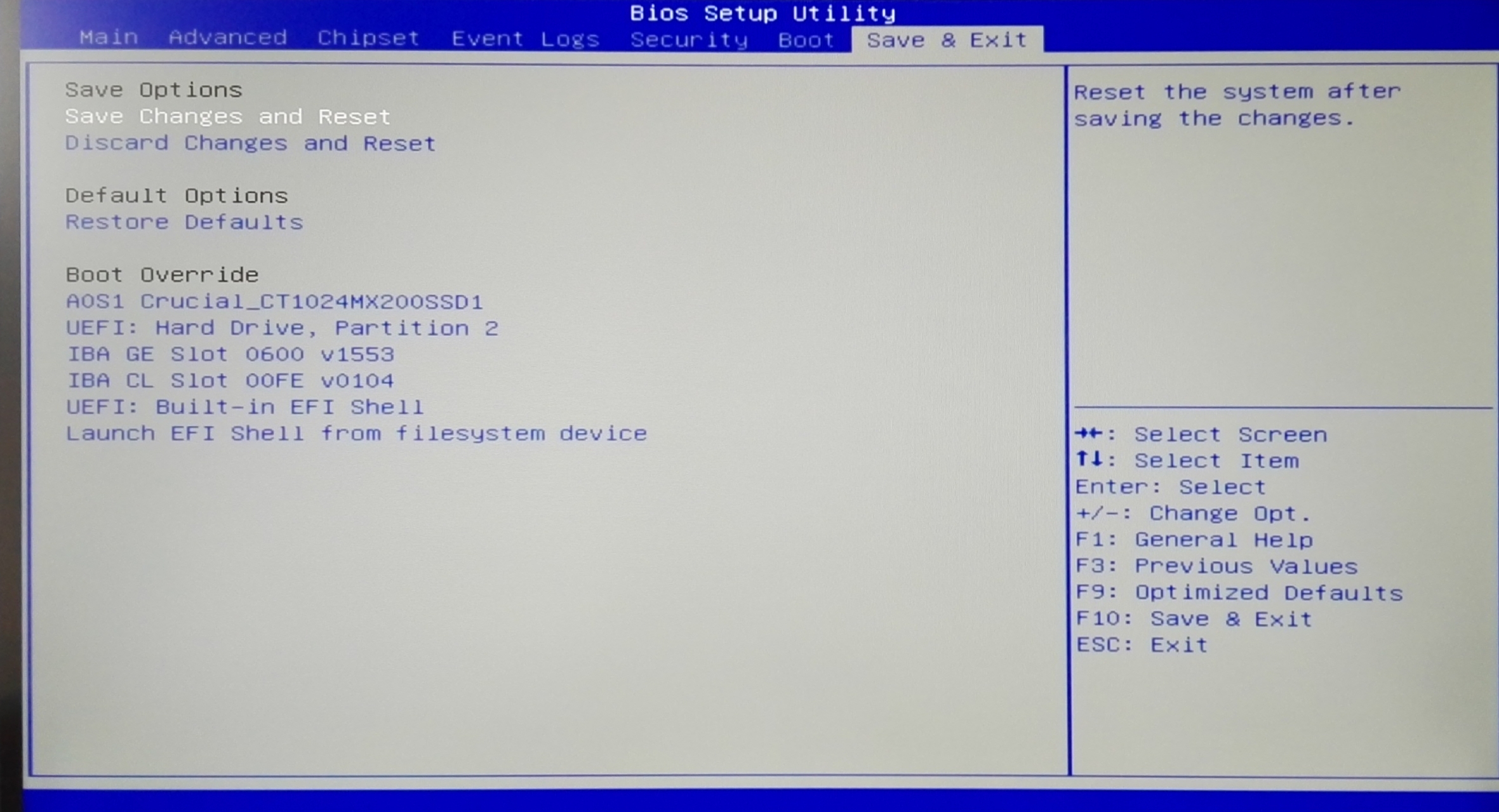
Aside from this final Boot Override setting, nothing else of much interest happens in the BIOS. There is no tool to take screenshots (hence these camera pictures), no easy tool for updating the BIOS, no fan control, and no real attempt to improve the ease of use on the interface.
The thing is, this interface is typically what motherboard manufacturers start with, and then they move options about, enable/disable options, create graphics to align with the options, and adjust when certain keypresses do things. It’s not a big leap to ensure some clarity in these options. There’s also another interesting thing – because we had to use Win10 for review rather than our usual Win7 image, using the ‘reset to UEFI’ option through the advanced options gave a completely different set of BIOS options, all in one long configuration menu. That being said, again nothing much was of interest.


Originally published at https://www.anandtech.com/show/10264/the-gigabyte-mw31-sp0-review (Wayback Machine).